Introduction
An App Protection Policy (APP) that restricts data transfer controls two things: which other apps a managed app may open, and which apps may receive its data. Opening an unmanaged app can be allowed with an exemption. Sharing documents with an unmanaged app cannot. Users notice the first as a link that does nothing or that opens a web page in Microsoft Edge instead of the app they expected.
Two cases from a production tenant show the pattern. The first involves DigiD, the digital identity that people in the Netherlands use to sign in to government websites. A user signs in to such a website in Edge and taps the button to confirm with the DigiD app, but the DigiD app never opens. In the second case a user taps an address in an Outlook mail with Waze set as navigation app, and lands on the Waze website in Edge.
DigiD is used by more than 13.5 million people. It gives access to the online services of government organisations and bodies with a public task, such as ministries, municipalities, healthcare and educational institutions and pension organisations. The sign-in on a phone is confirmed in a separate DigiD app, which is comparable to a national eID or bank ID app in other countries. For a Dutch employee it is a normal expectation that this works on the phone they also use for work.
Both cases have the same cause and the same type of fix. The difficult part is finding out what to exempt. On iOS and iPadOS the policy needs the exact URL scheme or Universal Link host that the app is called with, and Microsoft offers no method to find it. On Android the policy needs the package name of the app, which is public. This article describes how managed apps reach other apps on both platforms, how the exemption lists work, and how to read the required value from the Intune diagnostic log on each platform.
| Route | What it is | Controlled by | Can be exempted |
|---|---|---|---|
| Open-in and Share | The user sends a file or content to another app through the iOS share sheet | Send org data to other apps | No. Microsoft states that data transfer exemptions do not apply to Open-in |
| Cut, copy and paste | Clipboard between apps | Restrict cut, copy, and paste between other apps | Not per app. A character limit can allow short text for all apps |
| URL scheme | The app calls another app by a custom scheme, for example waze:// or comgooglemaps:// | Send org data to other apps | Yes, with Select apps to exempt |
| Universal Link | An https link that iOS opens in the app that claims the host, for example https://app.digid.nl/... | Restrict web content transfer with other apps | Yes, with Exempt Universal Links |
In most baselines Send org data to other apps is set to Policy managed apps or Policy managed apps with Open-In/Share filtering, and web content is restricted to Microsoft Edge. With those settings the default behaviour is:
- A URL scheme call only reaches other managed apps.
- An
httpslink opens in Edge, also when an installed unmanaged app claims that link.
This is the intended result for company data. It becomes a problem when the target app is harmless and the user needs it, such as an authentication app, a navigation app or a meeting client.
Open-in and Share on iOS and iPadOS
Open-in and Share hand the content itself to another app, where a URL scheme or Universal Link only starts another app with an address. That difference is the reason why an exemption cannot solve an Open-in or Share problem.
The user starts this route from the iOS share sheet: Open in, Share, or an action from a share extension. The sending app passes a file, text or image to the app the user picks. A URL call carries at most a few parameters, such as an address or a meeting ID. Open-in carries the document.
The value of Send org data to other apps decides what happens:
| Value | Behaviour for Open-in and Share |
|---|---|
| All apps | Any app can receive the data and can read and edit it |
| None | No transfer, also not to other policy managed apps. A transferred document is encrypted and unreadable |
| Policy managed apps | Only policy managed apps can use the data. Unmanaged apps may still be listed in the share sheet, but Intune encrypts the content and they cannot read it |
| Policy managed apps with OS sharing | As above, plus file transfer to other MDM managed apps. Applies to enrolled devices only |
| Policy managed apps with Open-In/Share filtering | As Policy managed apps, and the share sheet only shows policy managed apps. Both apps need Intune SDK 8.1.1 or later |
The two values that are confused most often are Policy managed apps and Policy managed apps with Open-In/Share filtering. Both protect the data in the same way. The difference is what the user sees in the share sheet.
| Policy managed apps | Policy managed apps with Open-In/Share filtering | |
|---|---|---|
| Who can use the data | Only policy managed apps | Only policy managed apps |
| Apps shown in the share sheet | All apps that iOS offers, managed and unmanaged | Only policy managed apps |
| When the user picks an unmanaged app | The transfer happens, but Intune encrypts the content and the app cannot read it | Not possible, the app is not offered |
| What the user experiences | A file that will not open in the chosen app, without an explanation | A shorter list with only apps that work |
| Requirement | None | The sending app and the receiving app both need Intune SDK 8.1.1 or later |
| Value in the diagnostic log | EnableOpenInFilter is 0 | EnableOpenInFilter is 1 |
In short, without filtering the protection is enforced after the user has made a choice that cannot work. With filtering the wrong choice is taken away. The filtering value therefore saves support questions about files that seem broken.
One exception applies to both values. An unmanaged app that supports the Intune data type can still appear as a target, for example through its own share extension. The content it receives stays encrypted.
Points to know:
- The exemption lists do not apply to this route. Microsoft states that the exempt app must be invoked through a URL protocol, and that Open-in is not based on it. An exempt app can be opened, but it cannot be given a document.
- On enrolled devices the iOS Open-in management feature takes part in the decision. Intune needs the
IntuneMAMUPNandIntuneMAMOIDapp configuration keys on the sending app to identify the managed account. The next subsection explains them. - The opposite direction has its own setting, Receive data from other apps.
- Spotlight search and Siri shortcuts are blocked unless the value is All apps.
When a user must hand a document to an app, the options are to bring that app under management, or to use Save copies of org data with an allowed storage location. An exemption will not help. The rest of this article covers the URL scheme and Universal Link routes.
IntuneMAMUPN and IntuneMAMOID on enrolled iOS and iPadOS devices
IntuneMAMUPN and IntuneMAMOID are two app configuration keys that tell a managed app which account on an enrolled iOS or iPadOS device is the organisation’s account. Without them, Intune cannot connect the two kinds of management on the device, and sharing between managed apps does not work as configured.
The reason is that two systems look at the same app. iOS knows which apps were installed through MDM, and its Open-in management decides which of those apps may exchange files. App protection works per account inside an app. The keys link the two: they state that the MDM enrolled user and the account in the app are the same identity.
| Key | Value in Intune | Meaning | Needed for |
|---|---|---|---|
IntuneMAMUPN | {{userprincipalname}} | The sign-in name of the enrolled user | All MDM managed apps |
IntuneMAMOID | {{userid}} | The Microsoft Entra object ID of the enrolled user | All MDM managed apps |
IntuneMAMDeviceID | {{deviceID}} | The Intune device ID | Third-party and line-of-business apps |
What the keys make possible:
- Send org data to other apps with Policy managed apps with OS sharing can transfer files to other MDM managed apps.
- Receive data from other apps with All apps with incoming Org data marks incoming data without an identity as data of this user, so that it is protected.
- App protection applies when the account the user signs in with matches the configured UPN.
For some apps Intune now sends the keys by itself. Since the September 2024 service release (2409), Intune sends IntuneMAMUPN, IntuneMAMOID and IntuneMAMDeviceID automatically to Excel, Outlook, PowerPoint, Teams and Word on Intune enrolled iOS devices, and Microsoft is extending that list. For those apps a manual policy is no longer needed. For all other managed apps, and for devices enrolled in a third-party MDM, the keys must still be deployed. Microsoft Edge and the Microsoft 365 Copilot app are examples: they are not on the published list at the time of writing, so they need the app configuration policy described below.
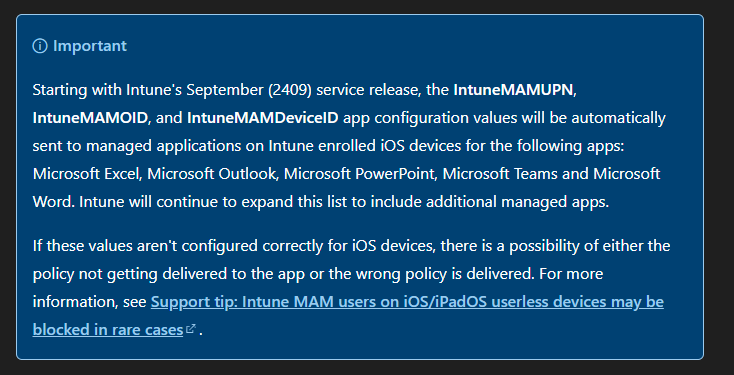
The keys also decide which policy an app receives. Intune treats an iOS or iPadOS device as unmanaged when the MDM does not pass IntuneMAMUPN. Microsoft warns that with incorrect values the policy may not be delivered, or the wrong policy may be delivered. This matters when a tenant has separate app protection policies for managed and unmanaged devices.
How to deploy them where it is still needed:
- Create an app configuration policy with enrolment type Managed devices.
- Add both user keys, IntuneMAMUPN and IntuneMAMOID, with the values from the table. For third-party and line-of-business apps also add the third key, IntuneMAMDeviceID.
- Assign it to each managed app that sends data. For the receiving app the keys are optional.
- Make sure the app is installed through Intune, as a required app or from the Company Portal. A copy the user installed from the App Store does not receive the configuration.
Important: the app must be managed by Intune, not only present on the device. The keys travel over the MDM channel, and that channel only reaches apps that Intune installed or took under management. An app that the user installed from the App Store looks the same on the home screen, but it never receives the keys. The result is that Intune treats this app as running on an unmanaged device, even though the device is enrolled:
- The app receives the policy for unmanaged devices, when the tenant has separate policies.
- Sharing with other MDM managed apps through Policy managed apps with OS sharing does not work for this app.
- The problem is invisible to the user and easy to miss for the administrator, because the policy and the app configuration both look correct in the portal.
Check this first when an enrolled device behaves like a personal device. Assign the app as required, so that Intune manages it, and verify in the diagnostic log that the app reports the account that matches the enrolled user.
Points to know:
- The keys apply to devices managed by Intune or by a third-party MDM. A device without enrolment has no MDM to pass them and counts as unmanaged.
- In most apps the work account must match the MDM enrolled user. The exception is an app that supports Multiple Managed Accounts (MMA). In such an app one account can be managed by MDM and app protection together, and additional accounts are protected by app protection only. Microsoft is rolling this out gradually. At the time of writing it lists Teams (8.10.0 or later) and Outlook (5.2626.0 or later) on iOS and iPadOS.
- Setting
IntuneMAMAllowedAccountsOnlylimits an app to one managed account on a managed device, which also switches off MMA for that app.
Different policies for managed devices and BYOD
An app protection policy is assigned to users, so by default the same policy applies on an enrolled device and on a personal device. An assignment filter for managed apps splits this: one policy for unmanaged devices with strict data transfer rules, and one for MDM managed devices where the rules and the exemption lists can be wider.
The filter uses the managed app property deviceManagementType. Two rules cover the basic split:
| Policy for | Filter rule |
|---|---|
| BYOD, no enrolment | (app.deviceManagementType -eq "Unmanaged") |
| MDM managed devices | (app.deviceManagementType -ne "Unmanaged") |
Create the filter for the managed apps platform, then select it on the Assignments page of the app protection policy with Edit filter.
The property also has values per enrolment type, so that a policy can target one kind of managed device:
| Platform | Values |
|---|---|
| iOS/iPadOS | Automated Device Enrollment user-associated devices, Automated Device Enrollment userless devices, Account Driven User Enrollment, Device Enrollment with Company Portal and Web Enrollment |
| Android | Corporate-owned fully managed, Corporate-owned with work profile, Personally-owned work profile, Corporate-owned dedicated devices with or without Entra ID Shared mode, AOSP user-associated devices, AOSP userless devices |
How Intune decides whether a device is managed differs per platform:
- iOS/iPadOS: the app is told through app configuration. The keys
IntuneMAMUPNandIntuneMAMOIDfrom the previous subsection, delivered through the MDM channel, mark the app as running on a managed device. Without them the device counts as unmanaged and receives the BYOD policy, also when it is enrolled. - Android: Intune detects the management state itself. No app configuration is needed. A device managed by a third-party MDM counts as unmanaged.
This is also the difference between the two types of app configuration policy:
| App configuration type | Channel | Reaches |
|---|---|---|
| Managed devices | MDM channel of the operating system | Only apps that Intune deployed on an enrolled device. This is the channel for the IntuneMAM keys |
| Managed apps | App protection (MAM) channel | Any app with the Intune SDK that has an app protection policy, whatever the enrolment state |
Points to know:
The values per enrolment type are rolling out, and the older values
Managed(iOS/iPadOS) andAndroid Enterpriseare being replaced. Existing filters are mapped automatically.The table under this list shows the old and the new values side by side.
The granular values need a device that is registered in Microsoft Entra. The managed apps configuration key
com.microsoft.intune.mam.IntuneMAMOnly.RequireAADRegistrationwith valueEnabledforces that registration.Microsoft names this requirement and the key in the notes under managed app properties for assignment filters, without further detail.
- On a device managed by a third-party MDM the granular values do not match.
- For the subject of this article the split is useful in one specific way: an exemption that is acceptable on a company device, where the target app is also managed, does not have to be opened up on personal devices.
Old and new values of deviceManagementType, as described by Microsoft under managed app properties for assignment filters:
| Platform | Old value (one for all managed devices) | New values (one per enrolment type) |
|---|---|---|
| iOS/iPadOS | Managed | Automated Device Enrollment user-associated devices, Automated Device Enrollment userless devices, Account Driven User Enrollment, Device Enrollment with Company Portal and Web Enrollment |
| Android | Android Enterprise | Corporate-owned fully managed, Corporate-owned with work profile, Personally-owned work profile, Corporate-owned dedicated devices with Entra ID Shared mode, Corporate-owned dedicated devices without Entra ID Shared mode |
| Both | Unmanaged | Unmanaged, not changed |
An example makes the change concrete. An existing filter with the rule (app.deviceManagementType -eq "Managed") matched every enrolled iPhone and iPad. That rule keeps working: Intune now reads Managed as all four new iOS/iPadOS values together. With the new values a filter can be narrower, for example (app.deviceManagementType -eq "Account Driven User Enrollment") for a policy that should apply only to personal devices with user enrolment. Microsoft will remove the old values later and has not given a date, so new filters are best written with Unmanaged or with the new values.
Cut, copy and paste: the character limit
The clipboard has no exemption list, but it has a character limit. The setting Cut and copy character limit for any app defines how many characters a user may cut or copy from a managed app to any other app, also when Restrict cut, copy, and paste between other apps blocks the clipboard. It exists on both iOS/iPadOS and Android, and the default is 0.
Tip: set the limit to 1024. That is enough to copy a URL in the exceptional case where a link must be opened outside the managed apps, for example when an app cannot be exempted. It is not enough to copy a document.
Two points to keep in mind:
- The limit applies to all apps and to any text, not only to URLs. A user can also copy 1024 characters of mail or document text to an unmanaged app, so this is a deliberate choice to document in the baseline.
- In the diagnostic log the value is shown as
ClipboardCharacterLengthException, next toClipboardSharingLevelfor the restriction itself.
The routes on Android
Android uses the same policy setting but a different unit of exemption. Intune identifies the target app by its package name, so the route that the calling app uses does not matter.
| Topic | iOS and iPadOS | Android |
|---|---|---|
| Unit of exemption | URL scheme or Universal Link host | App package name, for example com.cisco.webex.meetings |
| Exemption lists | Select apps to exempt and Exempt Universal Links | Select apps to exempt only |
| Links that open an app | Universal Links, controlled by Restrict web content transfer with other apps and its two lists | Android App Links, controlled by Send org data to other apps |
| How to find the value | Not documented by Microsoft. Read it from the diagnostic log | Google Play store URL of the app, or the diagnostic log |
| Phone and messaging | tel and sms schemes, or Transfer telecommunication data to | Transfer telecommunications data to and Transfer messaging data to |
Exemptions on iOS and iPadOS
The iOS/iPadOS App Protection Policy has two exemption lists, one per route. An entry in the wrong list has no effect, so the first question for every app is which route it uses.
Select apps to exempt (URL schemes)
This list holds the URL schemes that managed apps may call, also when the target app is unmanaged. Enter the scheme without ://, for example waze.
| Default entry | Target |
|---|---|
app-settings | iOS Settings |
itms; itmss; itms-apps; itms-appss; itms-services | App Store |
calshow | Native Calendar |
Points to know:
- Policies created before 15 June 2020 contain
tel;telprompt;. Microsoft advises to remove these and use Transfer telecommunication data to instead, when the calling apps use Intune SDK 12.7.0 or later. - With Intune SDK 14.5.0 or later,
smsandmailtoallow org data to go into the native message and mail compose views. Add these only as a deliberate decision.
Exempt Universal Links and Managed Universal Links
A Universal Link is a normal https link that iOS opens in an app when that app is installed and claims the host. With Restrict web content transfer with other apps set to Microsoft Edge, Intune keeps such links in the managed browser. Two lists change that behaviour.
| List | Target app | Behaviour | Defaults |
|---|---|---|---|
| Exempt Universal Links | Unmanaged | The link opens the unmanaged app | Apple Maps and FaceTime (maps.apple.com, facetime.apple.com) |
| Managed Universal Links | Managed, with Intune SDK | The link opens the managed app. If that is not possible, it opens in the protected browser | OneDrive, SharePoint, Teams, Power Apps, Power BI, Stream, To Do, Viva Engage, ServiceNow, Zoom |
Both lists accept wildcards, for example https://app.digid.nl/* or https://*.sharepoint.com/*. Microsoft warns that the target of an exempt Universal Link is unmanaged and that an exemption can lead to data leaks, so keep each entry as narrow as the scenario allows.
What Intune does under the hood
The diagnostic log shows how the Intune SDK enforces these lists. This behaviour is read from the logs of a production device, not from Microsoft documentation.
| Situation | What the SDK does |
|---|---|
| URL scheme, not exempt | Rewrites the scheme to <scheme>-intunemam. Only managed apps register that name, so an unmanaged app never receives the call |
| URL scheme, exempt | Passes the call unchanged |
| Universal Link, not exempt | Cancels the navigation and reloads the link in the managed browser (microsoft-edge-https://...) |
| Universal Link, exempt | Marks the link as a Universal Link and hands it to iOS, which opens the app |
The exemption applies to every managed app that the policy targets. A DigiD or Waze exemption made for Edge or Outlook therefore also works from Teams, OneDrive and the Office apps.
Exemptions on Android
On Android one list covers all routes: add the package name of the app to Select apps to exempt. The option is available when Send org data to other apps is set to Policy managed apps.
The settings in this section come from Microsoft documentation. The blocking behaviour and the log patterns were verified with a test on a Samsung device with Android 12.
How it differs from iOS
- Android App Links are controlled by Send org data to other apps, not by the web content setting. A link that belongs to an unmanaged app is blocked until the package name of that app is exempt.
- Restrict web content transfer with other apps only decides which browser opens normal
httpandhttpslinks. The SDK cannot determine whether a target app is a browser, so other managed browsers that support thehttpandhttpsintent are also allowed. - Phone numbers and messaging have their own settings: Transfer telecommunications data to and Transfer messaging data to, each with an option for a specific app by package ID.
Default exemptions
Intune already allows a set of system apps and services. These need no entry in the policy.
| Package | App or service | Scope |
|---|---|---|
com.android.phone | Native phone app | Full |
com.android.vending | Google Play Store | Full |
com.google.android.webview, com.android.webview | WebView | Full |
com.google.android.tts | Google Text-to-speech | Full |
com.android.providers.settings, com.android.settings | Android system settings | Full |
com.azure.authenticator | Microsoft Authenticator | Full |
com.microsoft.windowsintune.companyportal | Intune Company Portal | Full |
com.android.providers.contacts, com.samsung.android.providers.contacts | Contacts providers | Full |
com.android.providers.blockednumber | Block number provider | Full |
com.android.chrome | Google Chrome | Conditional. Used for some WebView components, data flow stays restricted |
com.android.providers.media | Media content provider | Conditional. Only ringtone selection |
com.google.android.gms, com.google.android.gsf | Google Play Services | Conditional. Google Cloud Messaging actions such as push notifications |
com.google.android.apps.maps | Google Maps | Conditional. Addresses for navigation |
com.android.documentsui, com.google.android.documentsui | Document Picker | Conditional. When opening or creating a file |
Google Maps is the only navigation app on this list. A user who prefers Waze needs the Waze package name in Select apps to exempt, which is the Android counterpart of the Waze example later in this article.
In the test, a tap on a normal Google Maps web link (https://maps.google.com/?q=...) was still blocked from Outlook and Edge. The default exemption for Google Maps is conditional and does not cover every way of opening the app. When users need Google Maps from a link, add com.google.android.apps.maps to the list.
Find the package name
The package name is in the Google Play store URL of the app, after id=. Microsoft gives these examples:
| App | Entry in Select apps to exempt |
|---|---|
| Webex | com.cisco.webex.meetings |
| Native SMS apps across vendors | com.google.android.apps.messaging, com.android.mms and com.samsung.android.messaging |
The SMS example shows the main Android caveat. Device vendors ship their own apps for the same function, so one scenario can need several package names.
What is not possible
An exemption lets a managed app open an unmanaged app. It does not extend data protection to that app, and it does not open the other routes. The table lists requests that come up in practice and cannot be met with an exemption.
| Platform | Request | Possible | Reason and alternative |
|---|---|---|---|
| Both | Allow copy and paste to one unmanaged app | No | The clipboard restriction has no exemptions per app. The alternative is the character limit, which allows short text such as a URL to all apps |
| Both | Let an unmanaged app read a file that Intune encrypted | No | Only apps that support the Intune data type can read it |
| Both | Protect the data after it reached an exempt app | No | The exempt app is unmanaged. Whatever it receives is outside Intune protection |
| Both | Exempt an app for Outlook only | Not within one policy | An exemption applies to every app the policy targets. A separate policy for that app is the only way |
| iOS/iPadOS | Share a document from a managed app to an unmanaged app | No | Exemptions do not apply to Open-in and Share. Manage the target app, or use Save copies of org data with an allowed location |
| iOS/iPadOS | Limit what a managed app passes in an exempt URL call | No | Intune allows or blocks the call. It does not inspect the parameters |
| iOS/iPadOS | Find the URL scheme of a third-party app in the Intune admin center | No | Microsoft offers no method. Use the diagnostic log or the app developer |
| iOS/iPadOS | See in the log whether a host belongs to an installed app | No | The log records the host, not the app behind it |
| Android | Exempt only one way of opening an app, for example the link but not the share action | No | The exemption names the package, so it covers every way of reaching that app |
| Android | Use Android Instant Apps with managed apps | No | Intune does not support Instant Apps and blocks any data connection to or from the app |
The consequence for a baseline is that every exemption is a controlled gap. The scheme, host or package name decides which app may be opened. What the user does in that app afterwards is no longer covered by the policy.
Finding out what to exempt
The Intune diagnostic log on the device records every app call that the SDK handled, including the scheme or host, so it shows exactly what to exempt. Microsoft’s own guidance is to ask the app developer, and the documentation states that Microsoft has no method to find the URL protocol of a third-party app. In practice the developer is often hard to reach, and the log gives the answer in a few minutes.
On Android the value is a package name. It is in the Google Play store URL of the app, and the diagnostic log also records the package name of every app that was blocked. The Android steps are at the end of this section.
Options to find the value
| Method | Result | Effort |
|---|---|---|
| Intune diagnostic log | The scheme, host or package that was really called in the user scenario | Low. Reproduce, collect, read |
| App developer documentation or support | The officially supported value | Depends on the vendor |
Info.plist and entitlements from the app package | All schemes and Universal Link hosts the app registers | High. Needs a Mac and the app package |
| Community lists of URL schemes | A first guess | Low, but often outdated and never authoritative |
The log is the preferred method, because it shows only what the scenario needs. An app often registers several schemes, and there is no reason to exempt all of them.
iOS and iPadOS: collect the log
- Reproduce the problem on the device. Tap the link once and note the time.
- Open Microsoft Edge and enter
about:intunehelpin the address bar. - Send the log to yourself and open it on a computer.
Collect the log directly after the test. Each app keeps two rotating log files, so in a busy app older events disappear after a few weeks. The export is one text file that contains the logs and the policy of all managed apps, and it can be around 100 MB.
iOS and iPadOS: the log lines that matter
| Log line | Meaning | Action |
|---|---|---|
openURL URL: '<scheme>://...' followed by Restricted URL: '<scheme>-intunemam://...' | A URL scheme call was blocked for unmanaged apps | Add the scheme to Select apps to exempt |
openURL URL: '<scheme>://...' followed by Restricted URL with the same scheme | The scheme is exempt and the call was allowed | None |
Returning FALSE from canOpenURL due to policy setting | The app asked whether a scheme can be opened and policy answered no | Add the scheme when the app needs it |
Protecting link: https://<host>/... with shouldPassThrough=0 | A tapped web link was kept in the managed app or browser | Add https://<host>/* to Exempt Universal Links when the host belongs to an installed app |
openURL URL: 'https://<host>/...' followed by microsoft-edge-https | An app sent a web link to the managed browser | Same as above |
Wkwebview link https://<host>/... shouldProtect is 0, isULType is 1 | The Universal Link is exempt and was handed to iOS | None |
The log scrubs the path and query of every URL, but the scheme and host stay readable. That is the part the policy needs.
Three details prevent wrong conclusions:
- iOS only opens an app from a Universal Link when the user taps the link. A reload or a restored tab always stays in the browser, so test with a new tap after a policy change.
- The host in the address bar can differ from the host that was called. Outlook calls
https://waze.com, and Edge then redirects tohttps://www.waze.com. The exemption must match the first one. - The active policy of an app is in the
EffectivePoliciesblock of itsIntuneMAMDiagnosticInfo.txtsection. Other blocks in the same section hold older cached records.
Android: collect and read the log
On Android the logs are saved from the Company Portal app and copied to a computer. Each managed app has its own log file, and that file names every package the app was not allowed to open.
- Sign in to the Company Portal app on the device.
- Reproduce the problem. Tap the link once and note the time.
- In Settings, select Save logs and choose a folder on the device.
- Connect the device to a Windows computer with USB and copy the saved files.
Opening about:intunehelp in Edge on Android uploads the logs to Microsoft and returns an incident ID. It does not give you the files, so use Save logs for this purpose.
The saved set contains more files than needed:
| File | Content | Needed |
|---|---|---|
<package>.log.zip, for example com.microsoft.office.outlook.log.zip | MAM_0.0.log with the app protection decisions of that app | Yes |
DiagnosticsInfo.log | The policy per managed app, including PackageExclusions (Select apps to exempt) and the last check-in | Yes |
OMADMLog_*.log, CompanyPortal_*.log | Company Portal and enrolment activity | No |
broker.*.txt | Sign-in broker activity | No |
The log lines that matter in MAM_0.0.log:
| Log line | Meaning | Action |
|---|---|---|
PackageManagerPolicyFactory Disallowing access to package <package> | The managed app may not open this app | Add the package name to Select apps to exempt |
Disallowing package <package> disallowed using TRANSFER_ONLY | The block is a data transfer restriction | None, it confirms the cause |
WebLinkRule Web link resolution was not a deep linked app, using browser | The link falls back to the managed browser | None |
MAMResolverUIBehaviorImpl No apps available. <... scheme=...> | No allowed app was found for this link | Look at the blocked package at the same time |
Times in these files are in UTC. One tap writes several lines in the same second. A block of com.android.chrome appears with every web link. It is the redirect to Microsoft Edge and needs no action.
Reading the log with the Intune MAM Link Analyzer
The Intune MAM Link Analyzer is a single HTML page that reads the diagnostic logs and lists every app, URL scheme and Universal Link that managed apps tried to open, with the result. Searching a 100 MB text file by hand works for one case, but it is slow and easy to misread.
The report reads both platforms: the iOS and iPadOS export, and the Android files (the app zip files and DiagnosticsInfo.log). Several files can be loaded at once, and the zip files do not need to be unpacked.
The page runs in the browser and reads the files locally. Nothing is uploaded, which matters because the logs contain user and tenant information. It is available online and needs no installation.
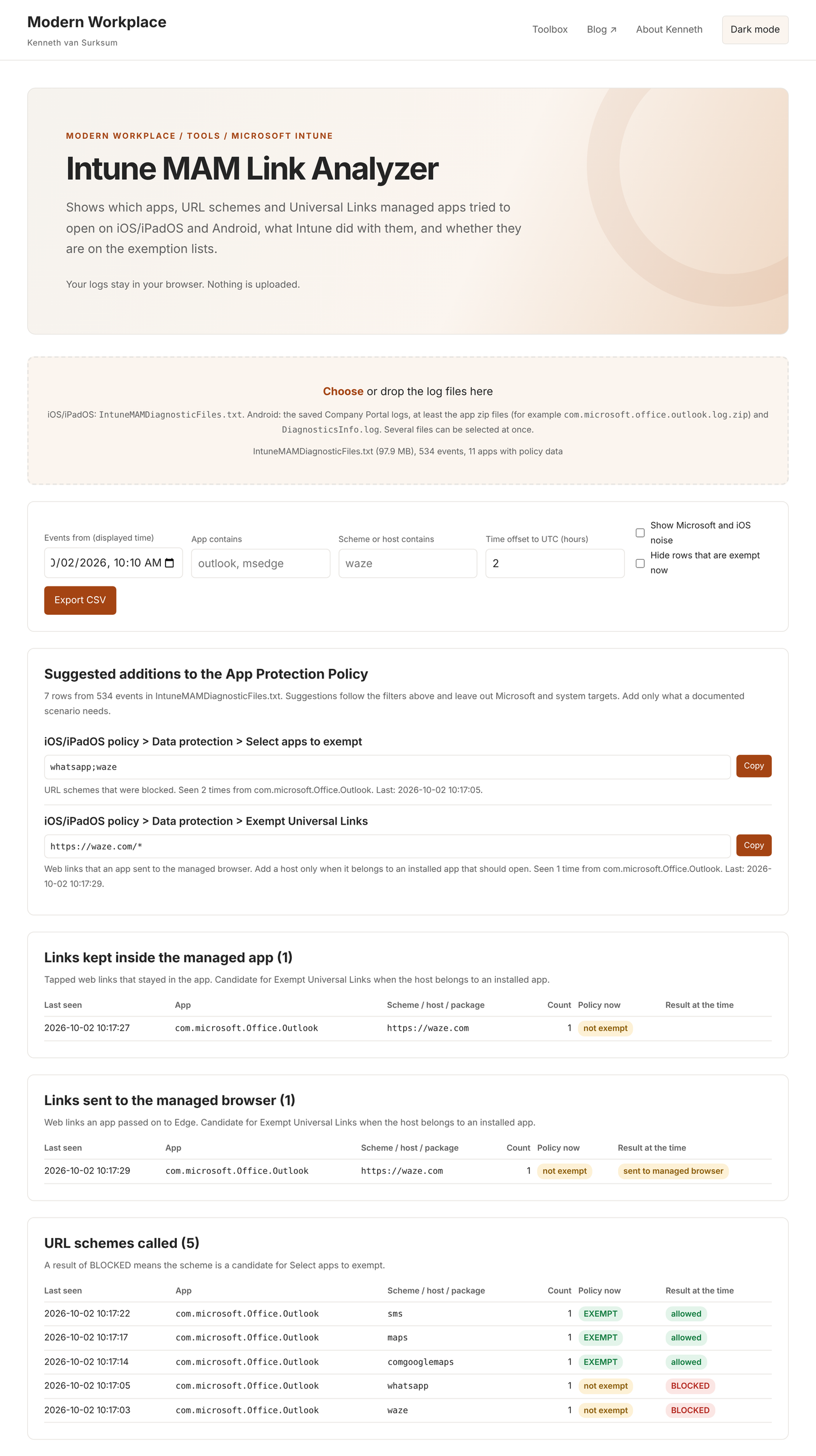
The first screenshot shows the result of a test mail opened in Outlook on iOS. The top card suggests what to add and where: the blocked schemes whatsapp and waze for Select apps to exempt, and https://waze.com/* for Exempt Universal Links. Each value has a copy button and a line that says which apps called it and when.
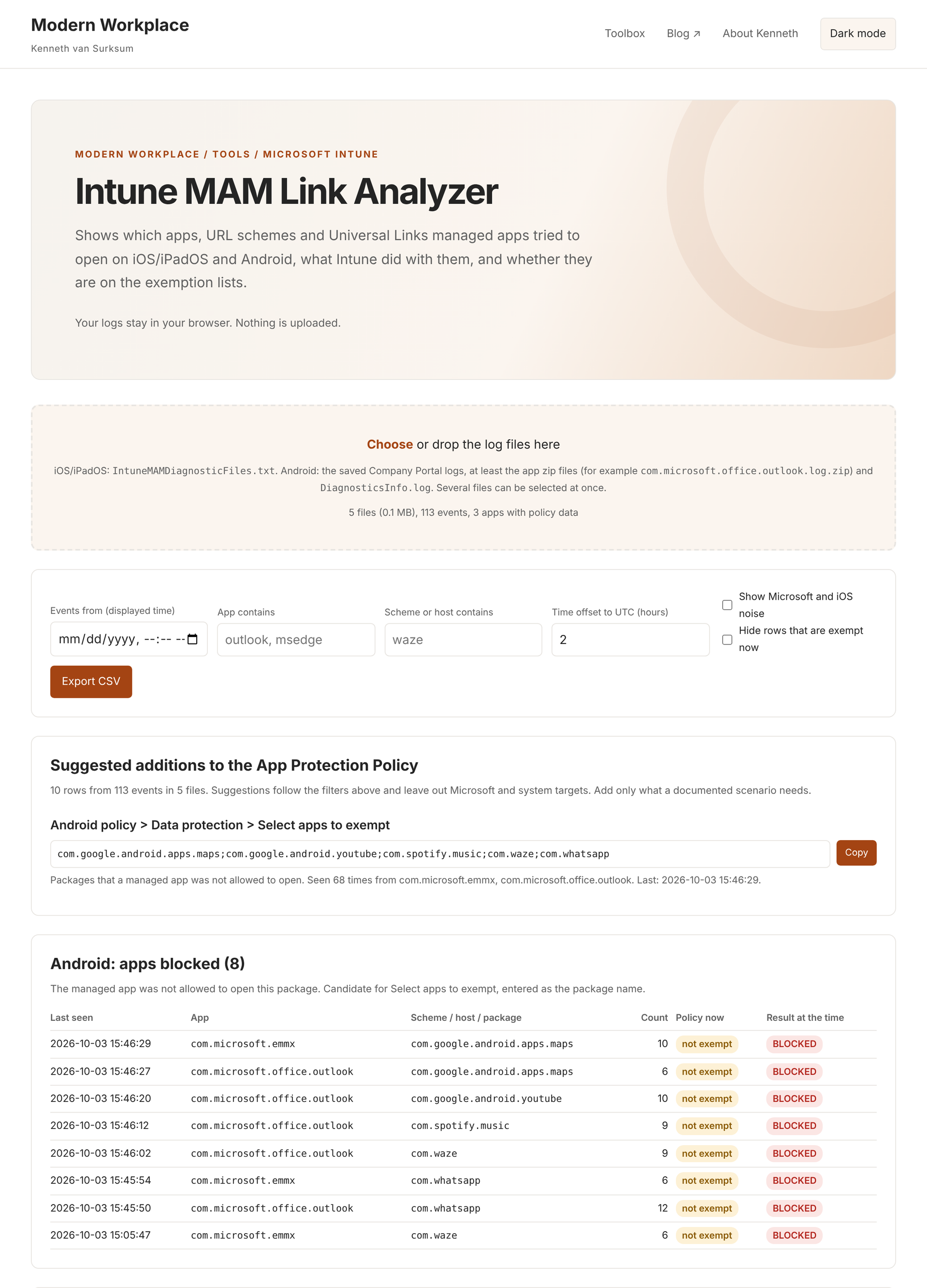
The second screenshot shows the same test on Android. The suggestion is a list of package names, and the table shows per managed app which package was blocked and how often.
| Part of the page | What it shows |
|---|---|
| Suggested additions | The values to consider, grouped per policy setting, in the format the policy expects. Microsoft and system targets are left out |
| Universal Links allowed | iOS: links on the exemption list that were handed to iOS |
| Links kept inside the managed app | iOS: tapped web links that stayed in the app or browser |
| Links sent to the managed browser | iOS: web links an app such as Outlook passed on to Edge |
| URL schemes called | iOS: scheme calls with the result, allowed or blocked |
| Android: apps blocked | Packages a managed app was not allowed to open |
| Android: no allowed app for a link | Links for which Intune found no allowed app |
| Effective policy per app | The exemption lists and the last check-in time per managed app |
Each row has two status columns. Policy now compares the row with the policy the app had when the log was collected. Result at the time is what the log recorded for the event. After a policy change these two differ until the user repeats the test, which makes it visible whether a fix has been verified.
Filters limit the view to a start time, an app, or a scheme or host. Microsoft and iOS hosts and internal schemes are hidden by default and can be shown with one option.
One limitation applies. The list of links kept inside the managed app contains every tapped web link, so normal websites appear there too. The log cannot tell whether a host belongs to an installed app. That judgement stays with the administrator.
Worked examples
iOS: DigiD, a Universal Link from Edge
The fix for DigiD is one entry in Exempt Universal Links: https://app.digid.nl/*.
- The Edge log showed
Protecting link: https://app.digid.nl/...withshouldPassThrough=0. DigiD is called through a Universal Link on hostapp.digid.nl, not through a custom URL scheme. - After the entry was added, the policy arrived in each app at its next check-in. The
EffectivePoliciesblock of every managed app showed the new value.
The first test after the change seemed to fail, because the old tab was reloaded instead of tapped. A reload never triggers a Universal Link.
iOS: Waze, an address in Outlook
The fix for Waze is https://waze.com/* in Exempt Universal Links.
- Outlook for iOS was set to open addresses in Waze. A tap on an address opened the Waze website in Edge.
- The Outlook log showed
openURL URL: 'https://waze.com/...', rewritten tomicrosoft-edge-https://waze.com/.... Edge then redirected towww.waze.com. - The host to exempt is
waze.com, withoutwww. - After the entry was added and Outlook had checked in, a new tap on the address opened Waze.
A direct waze:// link in a mail or on a web page is a different route. It needs waze in Select apps to exempt. For the address scenario only the Universal Link entry is required.
iOS: a test mail to verify both routes
A mail with one link per route gives a verified reference for each log pattern. Send it to a test user, open it in Outlook on the device, tap each link once and collect the log.
| Link in the mail | Policy list | Result in the log |
|---|---|---|
waze://?q=Amsterdam | Not exempt | Rewritten to waze-intunemam, blocked |
whatsapp://send?text=test | Not exempt | Rewritten to whatsapp-intunemam, blocked |
comgooglemaps://?q=Amsterdam | Exempt | Passed unchanged, allowed |
maps://?q=Amsterdam | Exempt | Passed unchanged, allowed |
sms:?body=test | Exempt | Passed unchanged, allowed |
https://waze.com/ul?q=Amsterdam | Not exempt | Sent to Edge |
https://maps.apple.com/?q=Amsterdam | Exempt by default | Handed to iOS, app opens |
Custom scheme links stay clickable in Outlook for iOS, so a mail is enough for this test. The exempt entries in this table come from the policy of the test tenant and will differ per tenant.
Android: the same test on a Samsung device
On Android every unmanaged app from the test was blocked by package name, whichever link type was used. The test ran on a Samsung SM-A217F with Android 12, with a mail opened in Outlook.
| Package blocked | From Outlook | From Edge |
|---|---|---|
com.waze | Yes | Yes |
com.whatsapp | Yes | Yes |
com.spotify.music | Yes | Not seen |
com.google.android.youtube | Yes | Not seen |
com.google.android.apps.maps | Yes | Yes |
Outlook handled each tap as a web link and passed it to Edge. In Edge the WhatsApp page then called whatsapp://, and the log shows that no allowed app was available.
The test also found an entry without effect. The exemption list on the device contained com.google.maps, while the device reports Google Maps as com.google.android.apps.maps. A package name that does not match exactly does nothing, and the log is a quick way to find such entries.
Summary
An unmanaged app that must open from a managed app needs an exemption. On iOS and iPadOS the entry goes in the list that matches the route: Select apps to exempt for a URL scheme, Exempt Universal Links for an https link. On Android the package name of the app goes in Select apps to exempt, whatever the route. On both platforms the Intune diagnostic log shows the value: the scheme or host on iOS and iPadOS, the package name on Android.
The method in five steps:
- Reproduce the problem with one tap and note the time.
- Collect the log:
about:intunehelpin Edge on iOS and iPadOS, Save logs in Company Portal on Android. - Open the log in the Intune MAM Link Analyzer and filter on the time of the test.
- Add the suggested scheme, host or package name to the matching list in the App Protection Policy.
- Wait for the app to check in, test with a new tap and confirm that the block is gone.
Governance points for a baseline:
- Exempt only what a documented scenario needs, and prefer a narrow Universal Link host over a broad wildcard.
- An exemption applies to all managed apps that the policy targets, not only to the app where the problem was reported.
- Record each entry with the app, the reason, the date and the approver, so that the lists can be reviewed during drift checks.
- Review inherited entries.
tel;telprompt;should be replaced by the telecommunication setting, andsmsormailtoallow org data into native compose views. - On Android, check whether a scenario needs more than one package name, because device vendors ship their own apps for the same function.
- Tell users and customers what an exemption does not do: it opens the app, but it does not allow documents or clipboard content to go to that app.
References
- iOS/iPadOS app protection policy settings: data transfer exemptions and Universal Links, Microsoft Learn
- How to create exceptions to the Intune App Protection Policy data transfer policy, Microsoft Learn
- Troubleshooting exemptions to data transfer policies, Microsoft Learn
- How to manage data transfer between iOS apps, Microsoft Learn
- Troubleshooting app protection policy deployment: collect device data with Microsoft Edge, Microsoft Learn
- App configuration policies: diagnostic logs, Microsoft Learn
- Review client app protection logs, Microsoft Learn
- Android app protection policy settings: data transfer exemptions, Microsoft Learn
- Report a problem in Company Portal or Intune app for Android: save logs, Microsoft Learn
- Intune App SDK for Android: understanding Company Portal logs, Microsoft Learn
- DigiD, NL Digital Government
- Create and assign app protection policies: device management types, Microsoft Learn
- Multiple managed accounts for app protection policies, Microsoft Learn
- Assignment filter properties: managed app properties, Microsoft Learn
- App configuration policies: managed devices and managed apps, Microsoft Learn
The log patterns and the SDK behaviour described in this article come from diagnostic logs of test devices, not from Microsoft documentation: an iPhone with Intune SDK 21.x on iOS 27, and a Samsung SM-A217F with Android 12 and Company Portal 5.0.7080.0.